Understanding the Inbox: Private Customer Feedback
The Inbox is where unhappy or lukewarm customers land privately — before they ever reach Google or Facebook — so you can make things right one-on-one.
Where inbox items come from
When Qrese sends a customer a review request, the customer is first asked to rate their experience. What happens next depends on the rating:
- Great — the customer is invited to leave a public review, so they never appear in the Inbox.
- Poor or Okay — the customer is asked to share what went wrong privately. Their rating and any written comments come to your Inbox instead of a public review site.
A customer doesn't have to write anything to show up here — a Poor or Okay rating with no comment still creates an inbox item, so you can reach out even when they didn't explain.
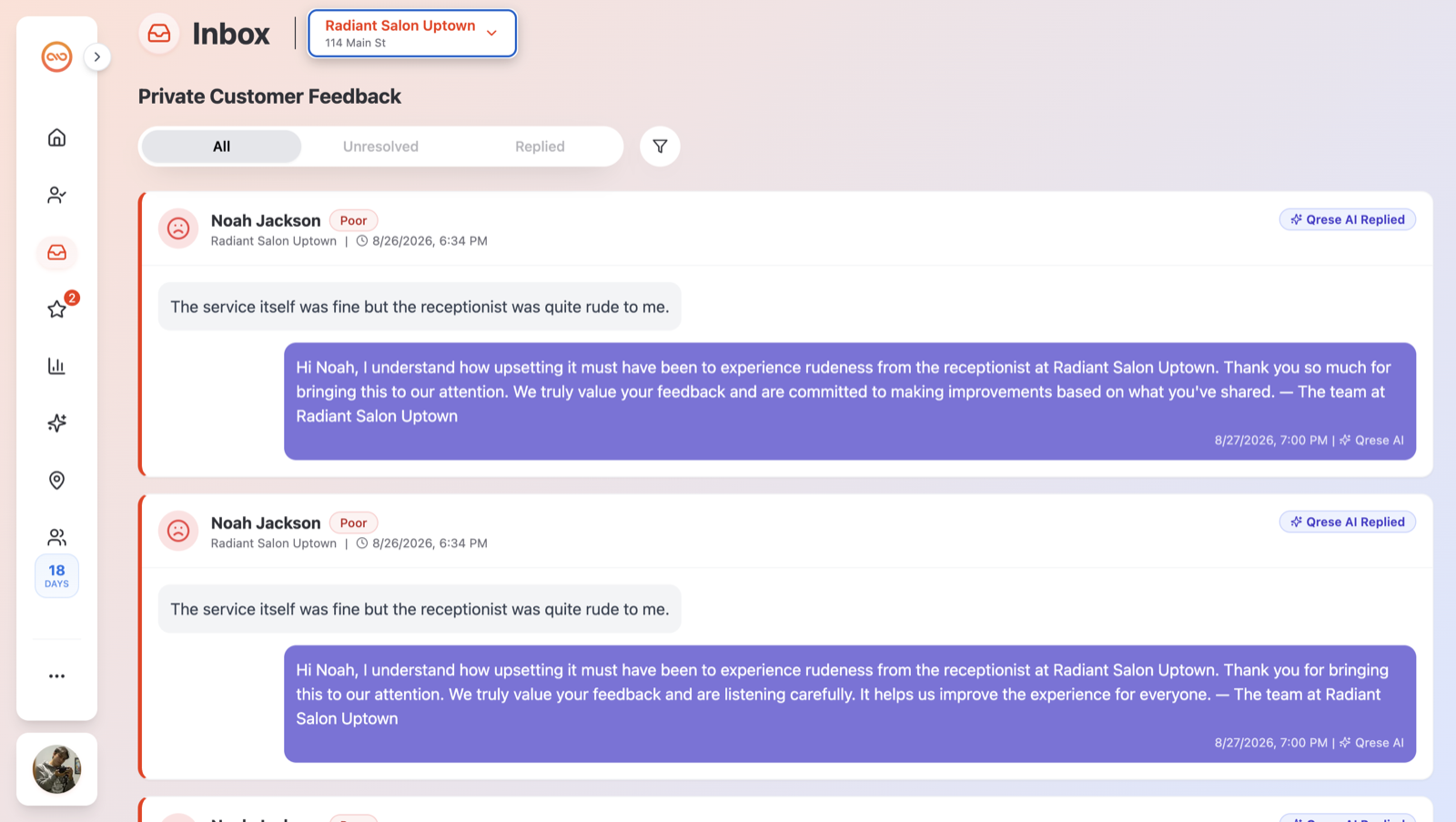
A tour of the page
The page is titled Inbox, with the same location selector you'll recognize from the Reviews page, and a section heading Private Customer Feedback.
Tabs:
- All — everything.
- Unresolved (selected by default) — items waiting for your attention.
- Replied — items you've answered or closed. This tab groups replied, AI-replied, and resolved items together.
Each feedback card shows:
- The customer's name.
- A rating badge: Poor (red frown) or Okay (amber "meh" face).
- The location name, plus the date and time the feedback came in.
- A status badge: Unresolved, Replied, Qrese AI Replied (with a sparkles icon), or Resolved (with a check icon).
- A red left border when the item is unread. Clicking into the reply box marks it as read and the border disappears.
- On unresolved items: a Resolve button and an Assign button.
Filters
Click the filter (funnel) button to open the Filters menu:
- Location — starts at All Locations; narrow to one location.
- Status — All Status, Unresolved, Replied, or Resolved.
- Date — All Time, Last Week, Last Month, or Last 3 Months.
- Assigned To — All, Unassigned, or a specific team member.
- Rating — All, Poor, or Okay. (There's no "Great" option — those customers go to public reviews, not the Inbox.)
- Sort By — Newest First or Oldest First.
When filters are active, a Reset Filters option appears in the menu to clear them all.
If nothing matches, you'll see No feedback found with a note suggesting you adjust your filters or check back later.
Loading more items
The Inbox shows 20 items at a time. Click Load More at the bottom (it shows how many items remain) to fetch the next batch.
Tips
- New feedback can take up to a minute to appear. If a customer just submitted feedback, give the page a minute and refresh.
- The Assigned To filter looks only at items already loaded on the page, so click Load More first if you're hunting for everything assigned to one person.
- The little cartoon avatars next to assignees are automatically generated illustrations, not your team members' real photos.
- You'll only see feedback for locations you belong to.