Using AI to Draft Review Responses
Qrese can write a suggested response to any review for you — you review it, tweak it if you like, and send it in seconds.
Before you start
Open the Reviews page and select a review that doesn't have a reply yet. The AI drafting option appears in the reply box at the bottom of the review's detail view.
Generate an AI draft
- 1. Open the review you want to answer.
- 2. Look at the bottom-left of the reply box (the one that says Write your response here...). You'll see a small round AI image button next to the text area — it has no text label, just an icon.
- 3. Click it. The button dims while the draft is being generated.
- 4. After a moment, the suggested response appears in the reply box.
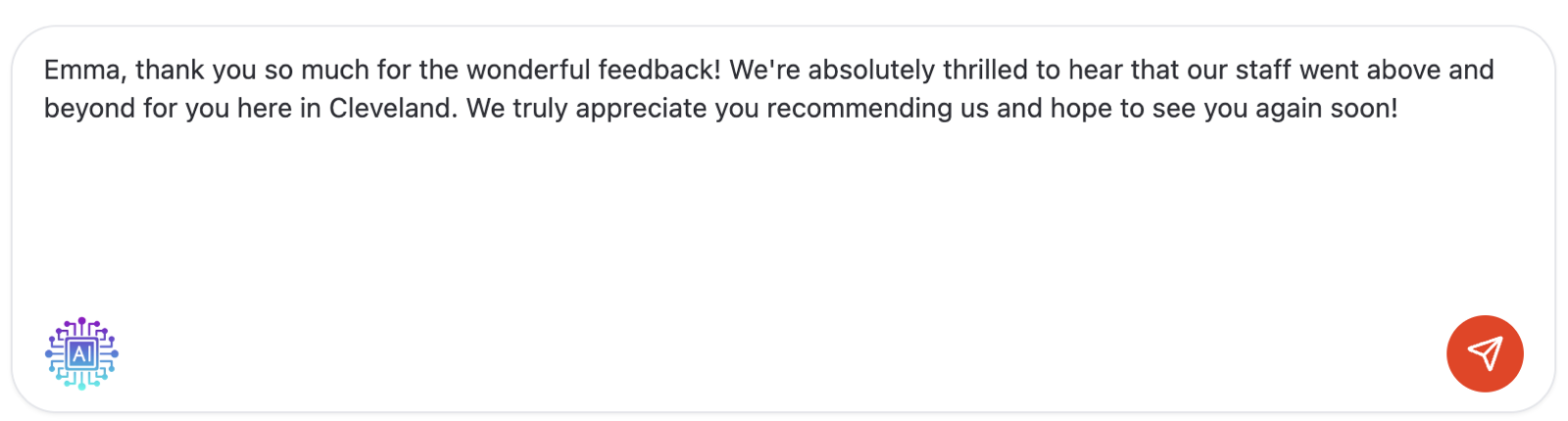
Edit and send
The draft is just a starting point — you can edit it exactly like text you typed yourself:
- 1. Read the draft and adjust anything you want: add the customer's name, mention a specific detail from their visit, or soften or warm up the tone.
- 2. When you're happy with it, click the red send (paper-plane) button.
The reply posts publicly to Google or Facebook, just like a manually written response.
How AI-assisted replies are labeled
Qrese keeps track of how each reply was written. Under a sent reply, click Options to see the attribution:
- Responded by: [your name] — you wrote the reply yourself.
- Responded by: [your name] via Qrese AI — you used the AI button (even if you edited the draft) before sending.
- Responded by: Qrese AI (Auto-Generated) — Qrese sent the reply automatically.
- Responded outside Qrese — the reply was written directly on Google or Facebook.
This label is only visible to you and your team inside Qrese — customers on Google or Facebook just see a normal reply from your business.
Troubleshooting and tips
- Nothing happened when I clicked the AI button. Give it a few seconds — the button dims while the draft is generating. If no text appears, try clicking it again.
- Always give the draft a quick read before sending. The AI writes a good general response, but you know your customer — a personal touch makes replies feel genuine.
- The draft replaces what's in the box, so generate the draft first, then make your edits.
- Remember the one-reply rule: each review can only have one response, so make sure the reply says everything you want before you send it.