Connecting integrations (booking systems and automation tools)
Integrations let your booking or CRM system tell Qrese about new customers and finished appointments automatically — so review requests go out without you lifting a finger. You'll find this under Settings → Integrations.
How it works
Your other system (for example Vagaro, Zoho, Acuity, or an automation tool like Zapier) sends events to a private Qrese address called a webhook. Each webhook is tied to one of your locations: when an appointment finishes or a customer is created there, Qrese adds the customer and starts the review request sequence automatically.
Adding a webhook
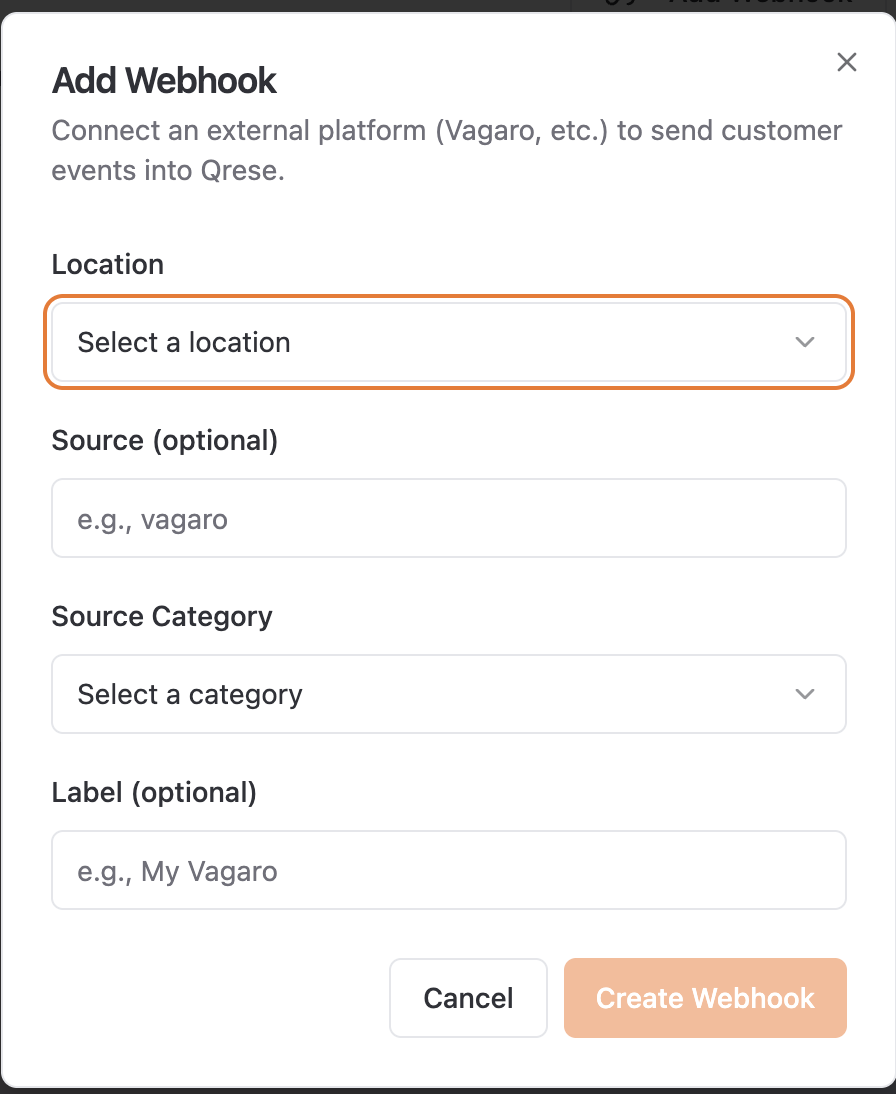
- 1. Open Settings → Integrations and click Add Webhook.
- 2. Choose the Platform (e.g. *vagaro*), the Location it feeds, and an optional Label (e.g. *My Vagaro*) and Source.
- 3. You'll see Webhook Created with the address to paste into your other system.
- 4. Follow your booking system's instructions to add that address to their webhook/notifications settings.
Configuring platform credentials
Some platforms (like Vagaro) only send a customer ID in their events — Qrese then needs permission to look up the customer's name and contact details. Click Configure Webhook on the integration and enter the credentials from your platform's account (for Vagaro: the client ID, secret key and region from your Vagaro developer settings).
Checking that it's working
Each webhook shows its recent activity. No events received yet means your other system hasn't sent anything — book a test appointment or check that you pasted the address correctly.
API tokens
If you're connecting a custom tool, click New API Token to create a token it can use. Treat tokens like passwords. To remove one, use Revoke this token? — anything using it stops working immediately.
Tips
- One webhook per platform per location keeps things tidy.
- After connecting, make a test booking and watch the Customers page — the customer should appear automatically with status Scheduled or Review Requested.