Setting up feedback screening
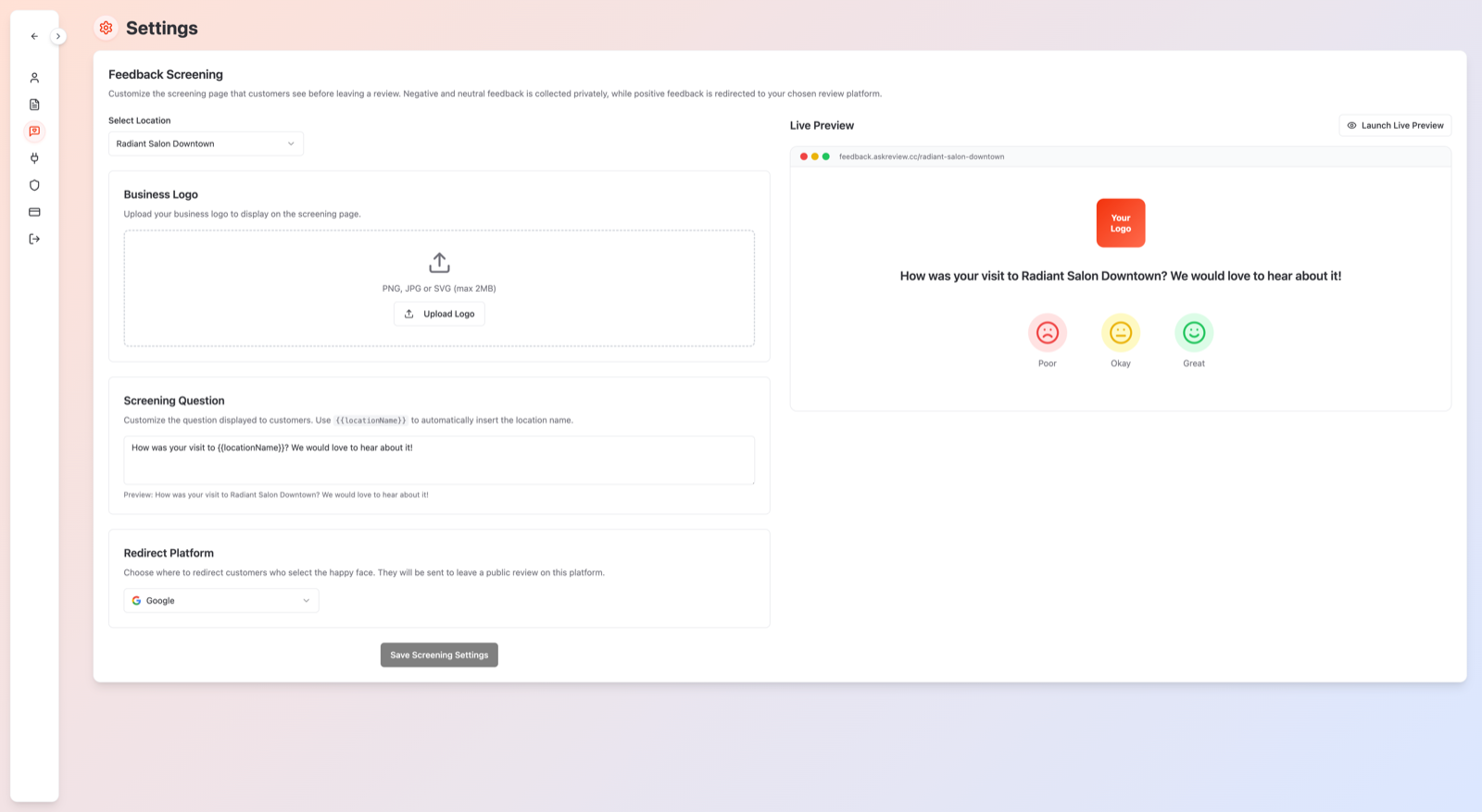
Feedback screening is the page your customers see when they open a review link: they rate their experience, happy customers are guided to Google, and unhappy ones share private feedback with you instead. The Feedback Screening section in Settings lets you customize that page per location.
Before you start
- Pick the location you're configuring in Select a location — each location has its own screening page.
- To understand what customers experience, see What your customers see when you request a review.
What you can customize
- 1. Business Logo — upload your logo so the page feels like your brand.
- 2. Welcome message — the question at the top, e.g. *"How was your experience at {{locationName}}?"*. The
{{locationName}}part is replaced automatically with your location's name. - 3. Where happy customers go — choose the review platform (Google or Facebook) that customers are sent to after choosing Great.
The three ratings
Customers pick one of three options: Great, Okay, or Poor.
- Great → the customer is redirected to leave a public review.
- Okay or Poor → the customer is asked for private feedback that only your team sees.
Live Preview
As you make changes, the Live Preview panel shows exactly what customers will see on their phone — logo, message and buttons — before you save anything.
Tips
- Keep the welcome message short and warm — it's the first thing customers read.
- Set up screening for every location before importing customers or sending requests, so the experience is branded from day one.